
%22%20d%3D%22m0%200%2016%2011h61%2061%2061%2061%2060L47%2037h61%2061%2060%2061L16%2063h61%2061%2061%2061%2060L47%2089h61%2061%2060%2061L16%20115h61%2061%2061%2061%2060L47%20141h61%2061%2060%2061L16%20166h61%2061%2061%2061%2060L47%20192h61%2061%2060%2061L16%20218h61%2061%2061%2061%2060z%22%2F%3E%0D%0A%3C%2Fsvg%3E%0D%0A)
Real desktop extension captures in Chinese, Japanese, Korean and English, with an original sample comic. Connection forms show setup, not a verified service connection.
Before you start
NodeLane Comics handles reading in your browser; manga-translator-ui (MTU) processes the images. Your own MTU channel needs no NodeLane account and uses no official translation allowance. Hardware, models and third-party API costs remain yours.
You need the latest desktop browser extension, an installed MTU service with its dependencies, and that service’s username and password. This tutorial uses http://127.0.0.1:8000 on the same computer as the browser. Use your actual port if it differs.
1. Start the MTU Web service
The extension needs an HTTP Web service. Opening the MTU desktop window alone is not enough. After installing MTU, run this command in its project directory and keep the service running. Skip this command if you already run the Web service through Docker or another method.
This example does not enable GPU processing. Add --use-gpu only after configuring a supported GPU environment as described upstream. Model, driver and hardware requirements depend on your MTU version.
uv run --no-sync python -m manga_translator web --host 127.0.0.1 --port 80002. Translate a test image in MTU first
Open http://127.0.0.1:8000 in your browser, complete MTU’s account setup and sign in. If it requires an initial password change, complete that in MTU before connecting the extension. These are MTU credentials, separate from your NodeLane account.
Configure the translator, models and any required API keys on the server, then confirm that a test image produces a translated image. The extension sets the target language and uses server defaults for other translation settings. Make sure the Web service uses the intended defaults. Do not enter a model API key in the extension’s password field.
3. Add a translation channel in the extension
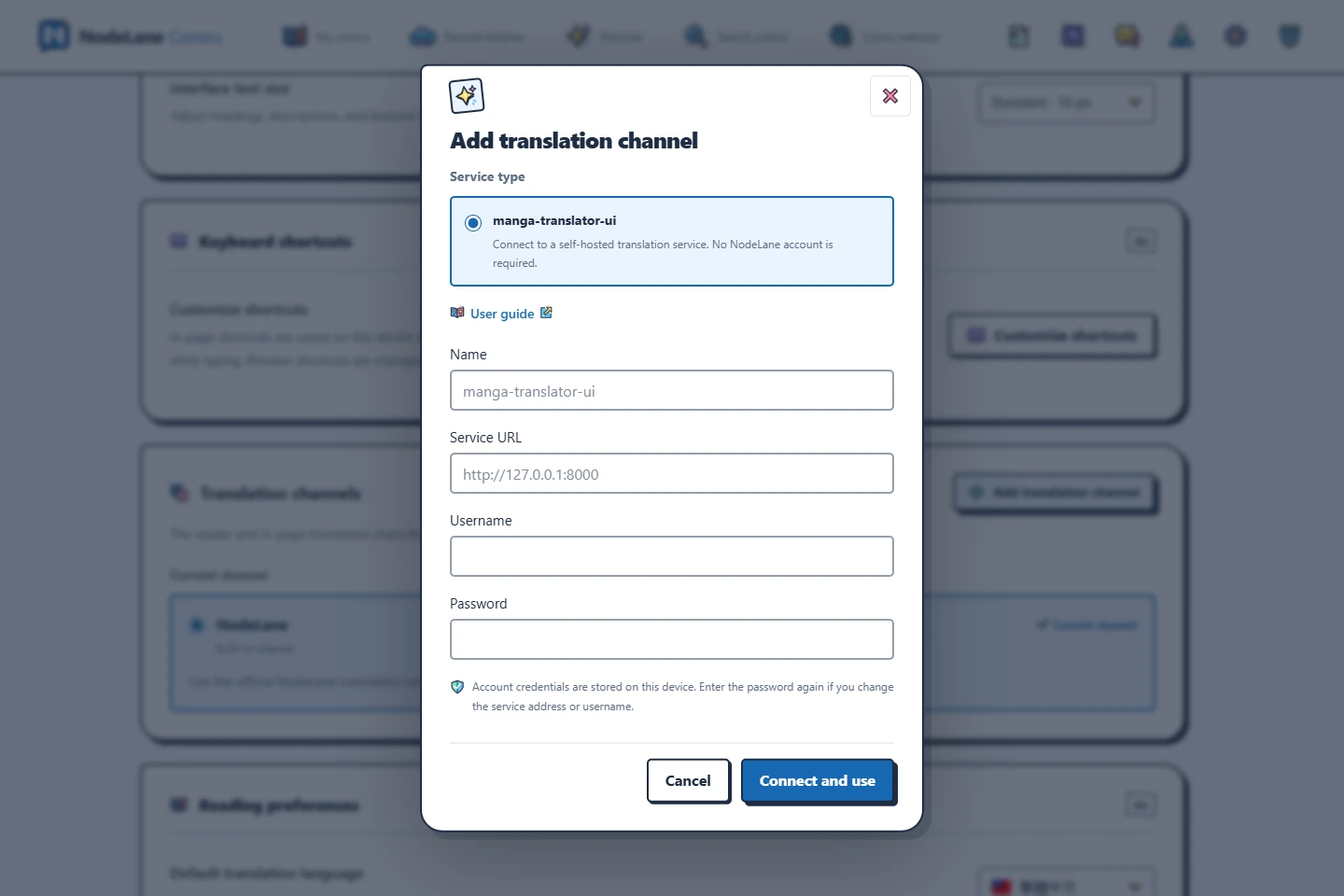
Open the extension’s settings and find Translation channels. After a successful connection, the extension saves the service password and token locally on this computer. When reconnecting with the same service address and username, leave the password blank to reuse the saved password. Enter it again if the address or username changes, or if the password has changed or is no longer valid. Older profiles that only contain a token need a password once on their first reconnection. Labels below describe the corresponding controls in your interface language. Saving passwords and reconnecting with a blank password require extension 0.10.2 or later; earlier versions require the password on each reconnection.
- Choose Add translation channel and confirm manga-translator-ui as the service. Optionally give it a recognizable name, such as “My computer”.
- Enter http://127.0.0.1:8000 as the service address. Use the service root, without /auth/login, /translate/with-form/image or an administration page path.
- Enter your MTU username and password, then choose Connect and use. Connecting does not request a separate site permission; if browser access is restricted, restore access to all websites in the extension settings and retry.
- Check that Current channel shows the new service. You may save multiple service profiles, but only the selected channel is used at a time.
4. Read your first translated page
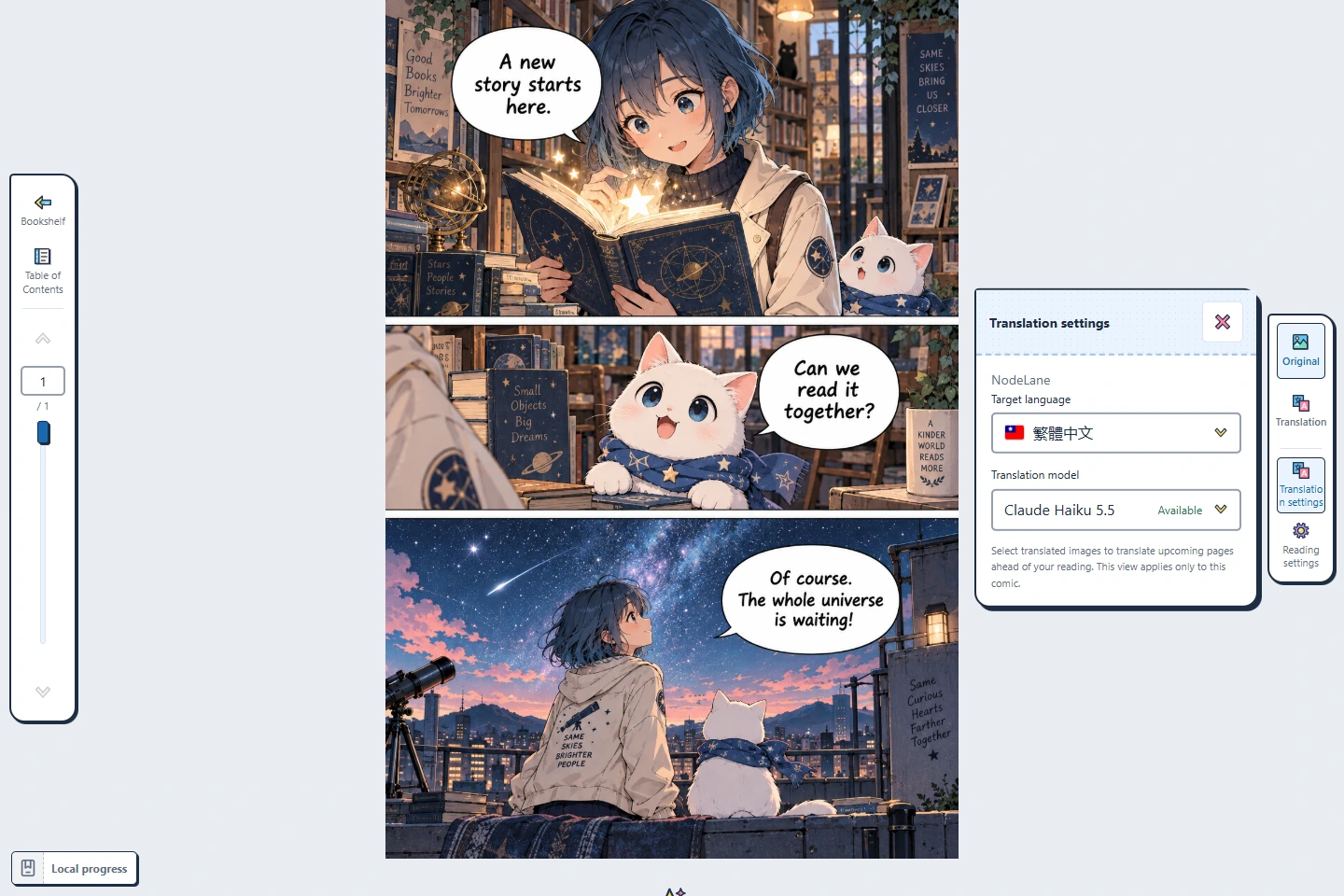
Open a local book, OPDS item or supported website in the reader. Choose your target language and the MTU channel, then test the current image. Both official and MTU channels provide image translation in the current extension.
Current images take priority within a limited nearby reading window. One MTU channel processes images serially. Switch back to originals or compare side by side without losing your position; reader, website and region translation share the selected channel.
If a page fails, resolve its reported issue before retrying manually. Closing a page or losing the connection does not prove that MTU stopped computing. Avoid repeated submissions while the service may still be busy.
Troubleshoot connections, login and long waits
Check MTU itself before retrying in the extension. Do not share passwords, tokens or private comic files when reporting a problem.
| Symptom | What to check |
|---|---|
| The service address does not open | Check that the Web service is running and the port is correct. 127.0.0.1 means the computer running the browser; a different device needs its own reachable address. |
| The page opens, but the extension cannot connect | Check the root address, browser access permission and whether your MTU version provides compatible account login and image translation endpoints. |
| Wrong credentials or initial password change required | Sign in to MTU or change the initial password there, then reconnect. Use MTU credentials, not a NodeLane password or model API key. |
| A previous connection now reports an expired login | Choose Reconnect in channel settings. For the same service address and username, leave the password blank to reuse it. Enter it again if the address or username changes, the password has changed or is no longer valid, or an older profile only has a token. The extension does not silently resend the previous translation. Saving passwords and reconnecting with a blank password require extension 0.10.2 or later; earlier versions require the password on each reconnection. |
| Connected, but translation keeps waiting | Check model downloads, engine loading, queues, API balance and hardware resources. Test the same configuration in MTU. Connecting only verifies login. |
| Interrupted, timed out or returned something other than an image | Check the MTU task, proxy timeout and response. Retry the failed page manually after fixing the cause. The extension does not restore results automatically from MTU history. |
Cache, offline use and where images go
Local-channel results are cached in this browser’s local storage. Clearing the cache, or setting the translated-image cache budget to zero and closing pages that still hold results, can remove them. Missing results require manual retranslation; the extension cannot fetch them back from MTU.
Images go to the selected MTU service. Running MTU locally does not guarantee offline translation: online translators, OCR or image models may send text or images to their providers. Offline generation requires available originals, downloaded models and a pipeline with no online dependencies.