


Screenshots show the actual 1.2.0 settings in a browser preview, before models and fonts are downloaded.
Select the built-in local translation channel
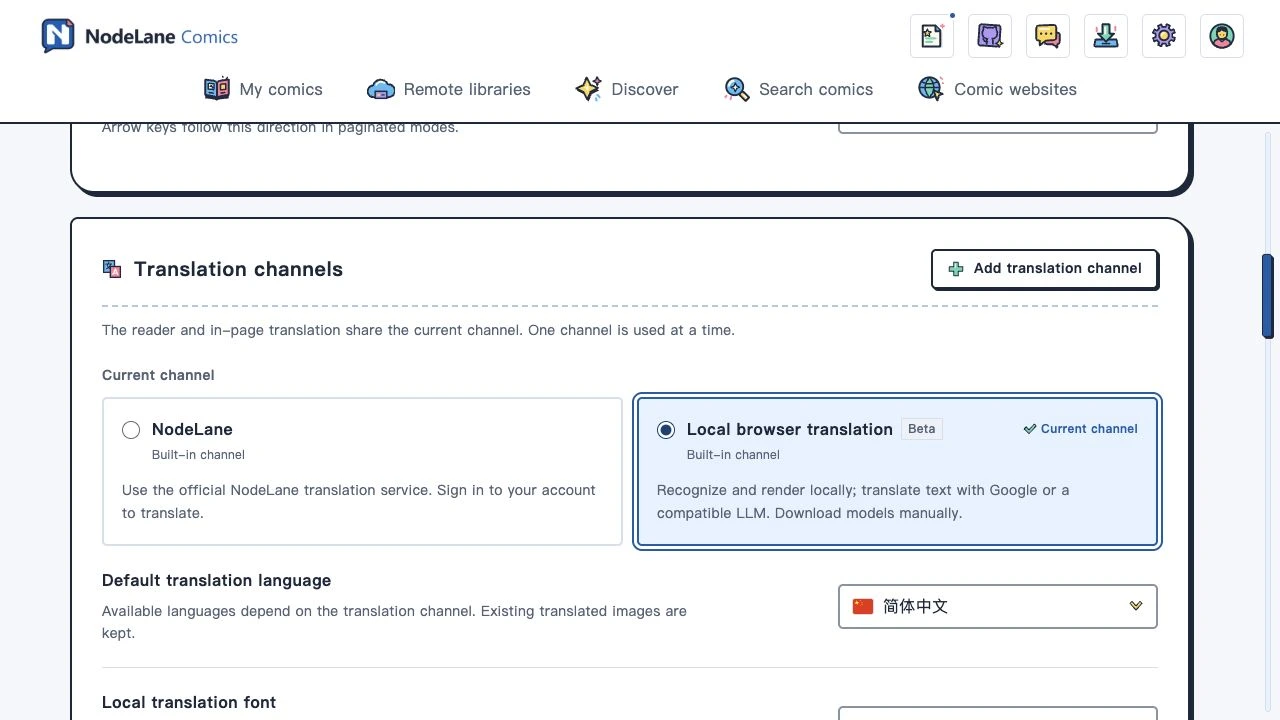
Open Appearance & settings → Translation channels and select Local browser translation, marked Beta. It is already built in: do not add another channel or deploy manga-translator-ui. This channel needs no NodeLane account and uses no official translation credits. The reader and in-page translation share the selected channel. This guide uses the 1.2.0 interface; if the option is missing, check your installed version and the update available from your browser’s store.
Download the required models and full font
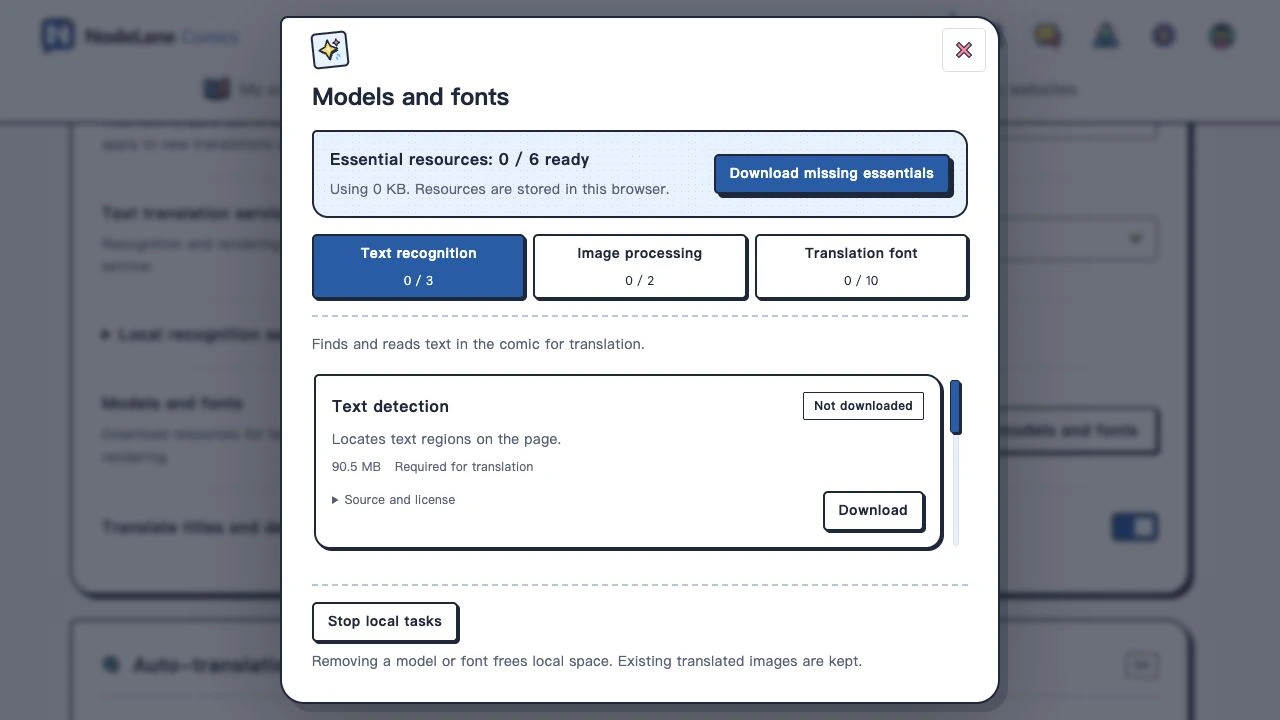
Open Manage models and fonts, then choose Download missing essentials. Wait for text recognition, image processing and the selected font to download and pass verification. All essential resources must show as ready. The model bundle is about 196 MiB, plus fonts; you do not need every font. Pause, resume or retry interrupted downloads. Resources belong to the current browser and may need downloading again after browser data is cleared. Removing models or fonts keeps existing translated images.
Choose a supported target language and font
Local output currently supports Simplified Chinese, Traditional Chinese, Japanese and Korean. Other targets marked as not yet supported do not start local translation. Choose a downloaded, verified full font under Local translation font. Fonts follow the target language; the language filter in resource management only browses fonts and does not change your translation target. A font change applies to new tasks. Manually retranslate an existing page to update its lettering.
Choose Google or your own LLM text service
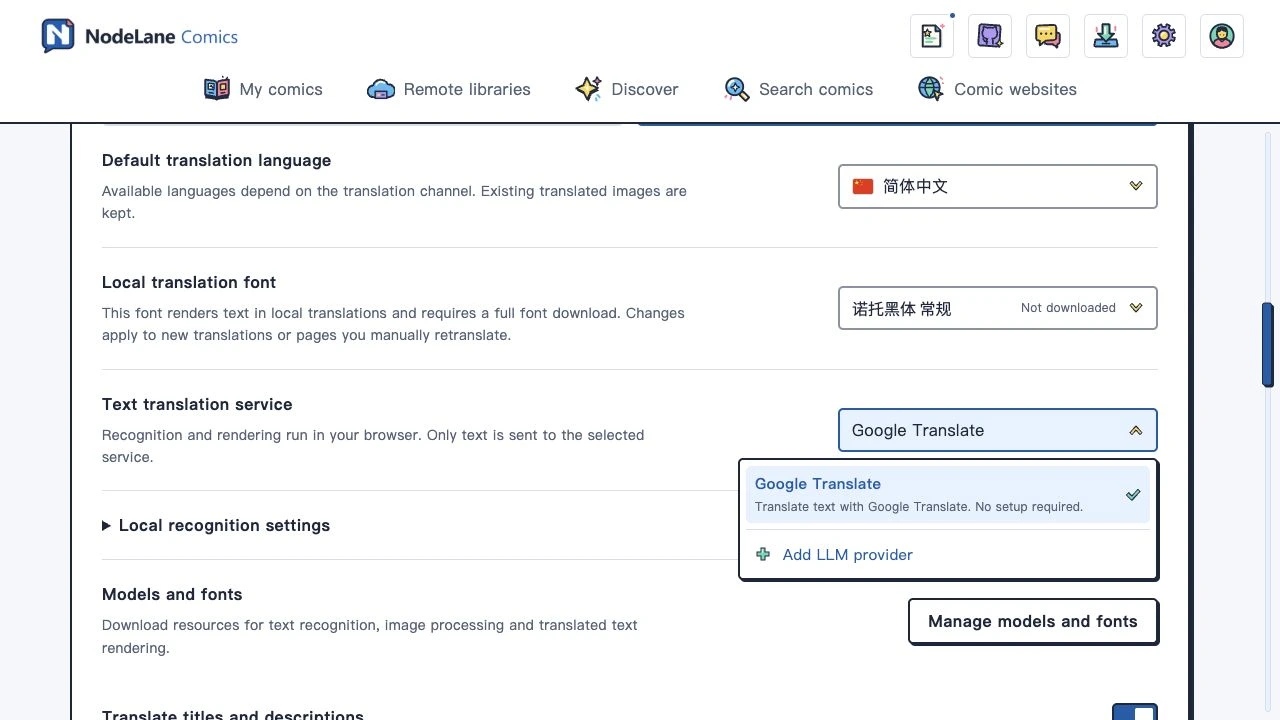
Open Text translation service. The default Google Translate option needs no API key, but requires access to Google. To use your own model, add an LLM provider, choose a preset or custom configuration, and enter its name, base URL, model and any required token. Saving selects that provider. Use an API prefix such as http://127.0.0.1:1234/v1, without /chat/completions, /responses or /messages. Set advanced options to match your service; Messages requires a maximum output-token value. Tokens stay in the extension credential store: leave them out of screenshots and reports.
Translate one page and compare it with the original
Open an imported comic. In the reader’s translation settings, confirm the channel and target, then enable translation and begin with the current page. Supported webpages also offer in-page translation. Check dialogue, missing text and layout before continuing. Switching between original and translated images preserves your reading position; successful cached images can be viewed again. Changing a font or parameter does not automatically redo old pages—use manual retranslation. This channel runs in the extension, not the website image-translation workspace.
Understand privacy, costs and offline requirements
Detection, OCR, text removal and lettering run on your device. This translation channel does not send comic images to NodeLane’s official translation service; recognized text goes to your chosen Google or LLM service. Separately enabled image enhancement follows its own channel rules. Third-party APIs may charge fees. Local processing uses memory and compute, and initial model loading takes extra time, so try a few pages first. Reading a cache is different from creating new translations offline: the latter needs local originals, models, fonts and a local text service that works without Internet access.
Troubleshoot a page that does not translate
First check the selected channel, supported target and readiness of required models and fonts. For download failures, check connectivity and browser storage. For 401, 429 or connection errors, check the service token, rate limits, URL and model name. Correct unsupported parameters before retrying rather than clicking repeatedly. Interrupted or uncertain requests are not automatically sent again; resolve the cause, then retry manually. Compare with the original to distinguish OCR, translation and lettering errors. Beta results are not guaranteed to work equally well for every comic.